Branding
Every field in the Arc0 Connect editor, how the live preview works, and what happens when you publish.
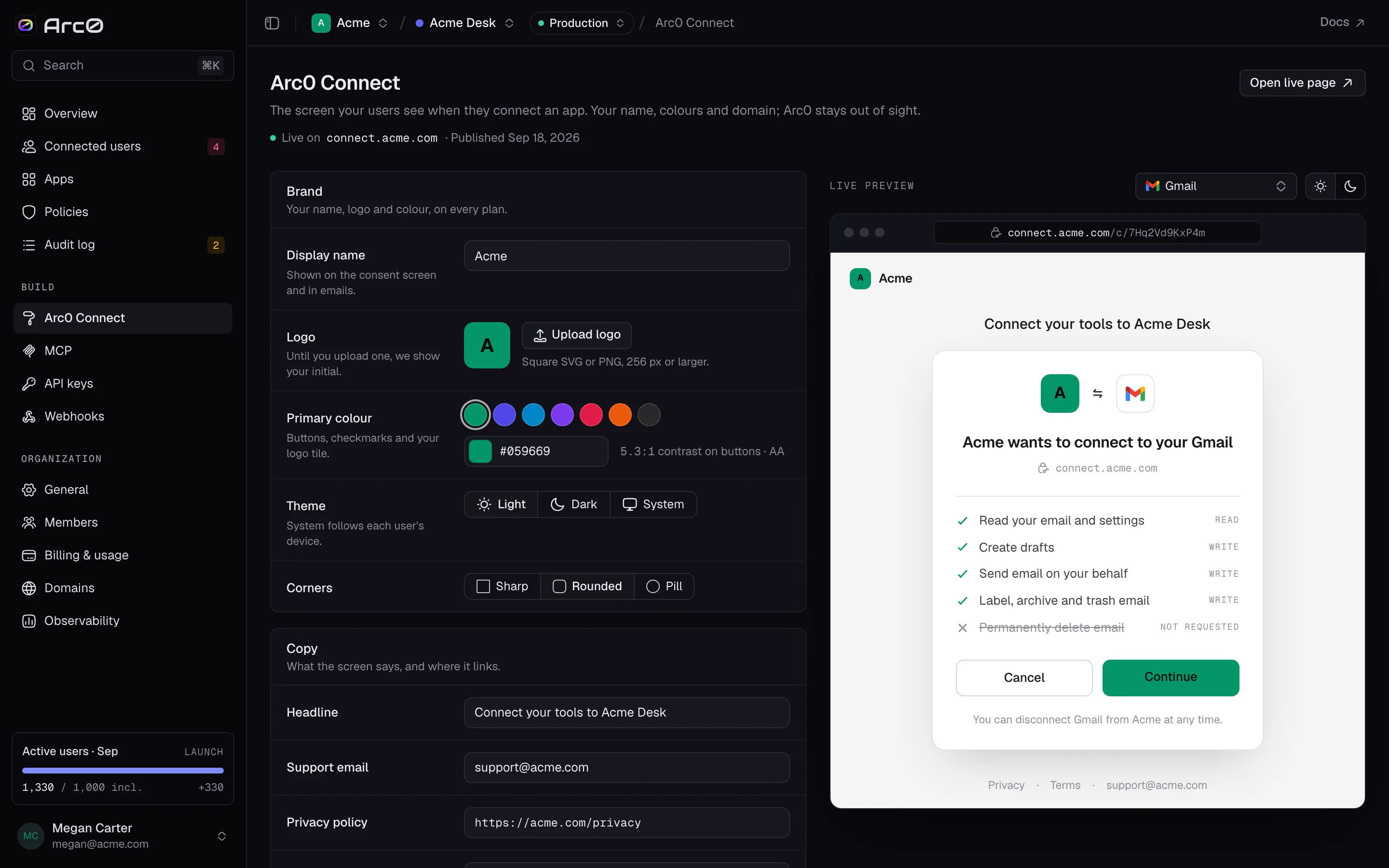
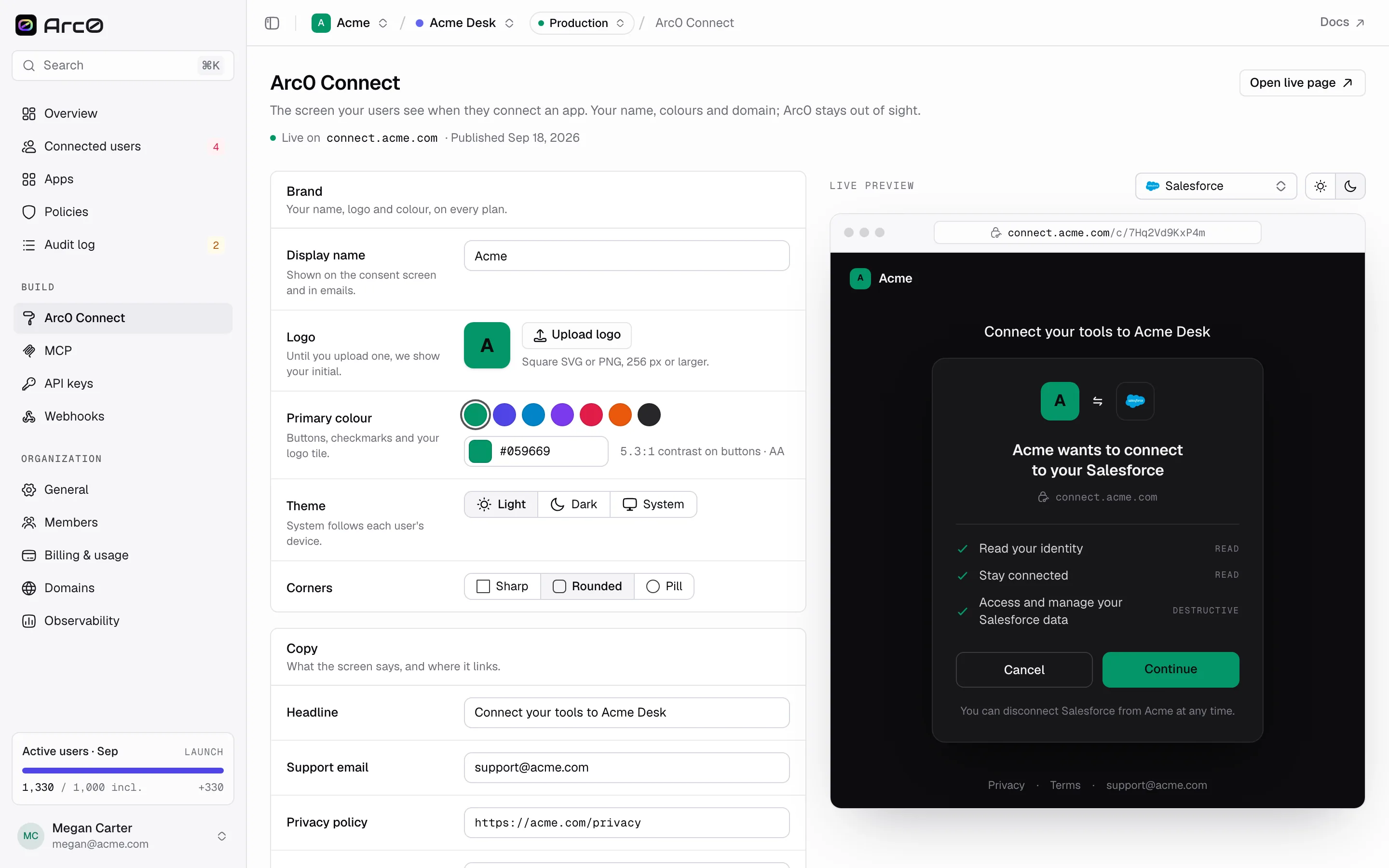
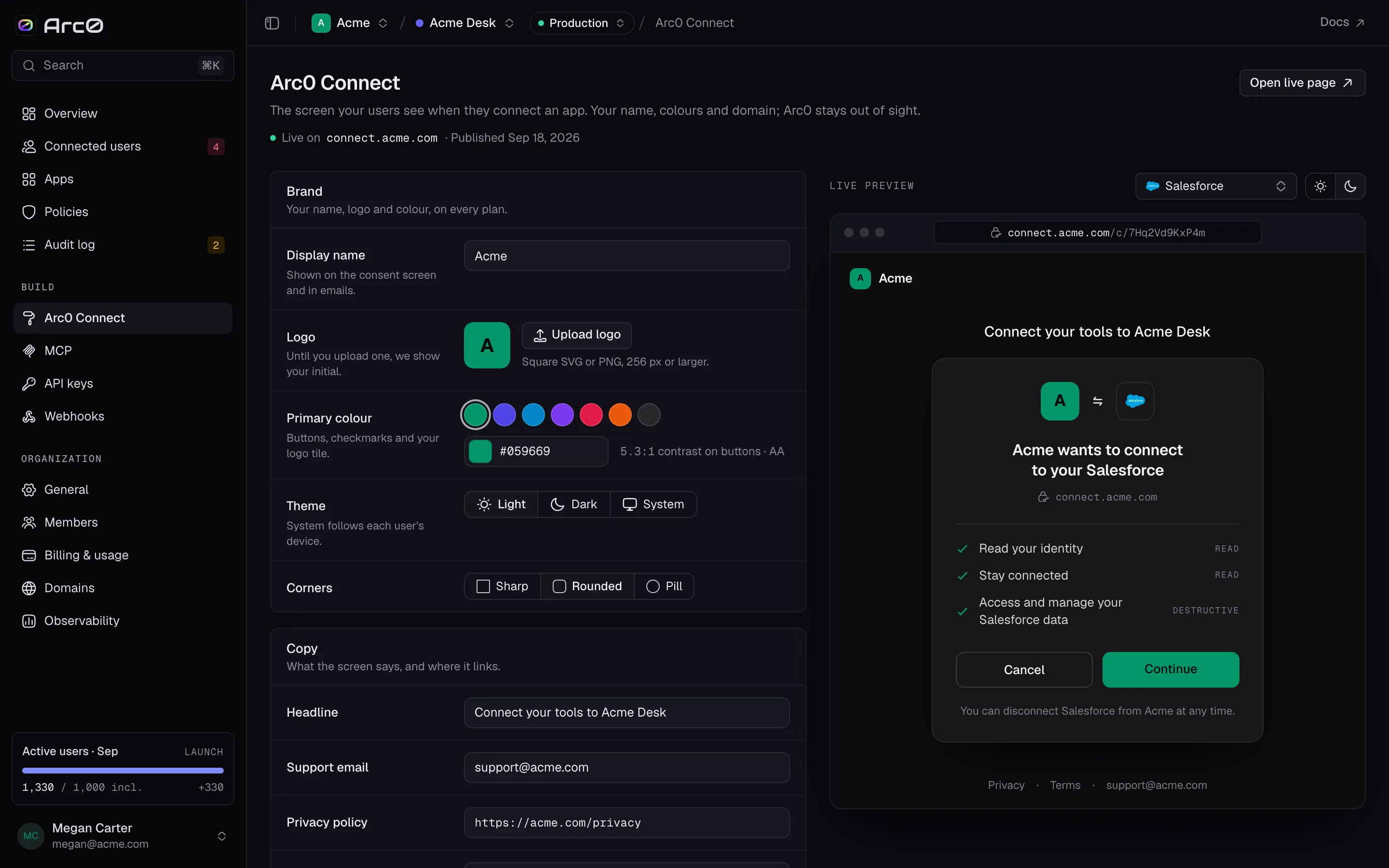
Arc0 Connect is white-labeled from the first field. The editor at Connect in your project changes what your users see immediately in the preview, and nothing goes live until you publish.
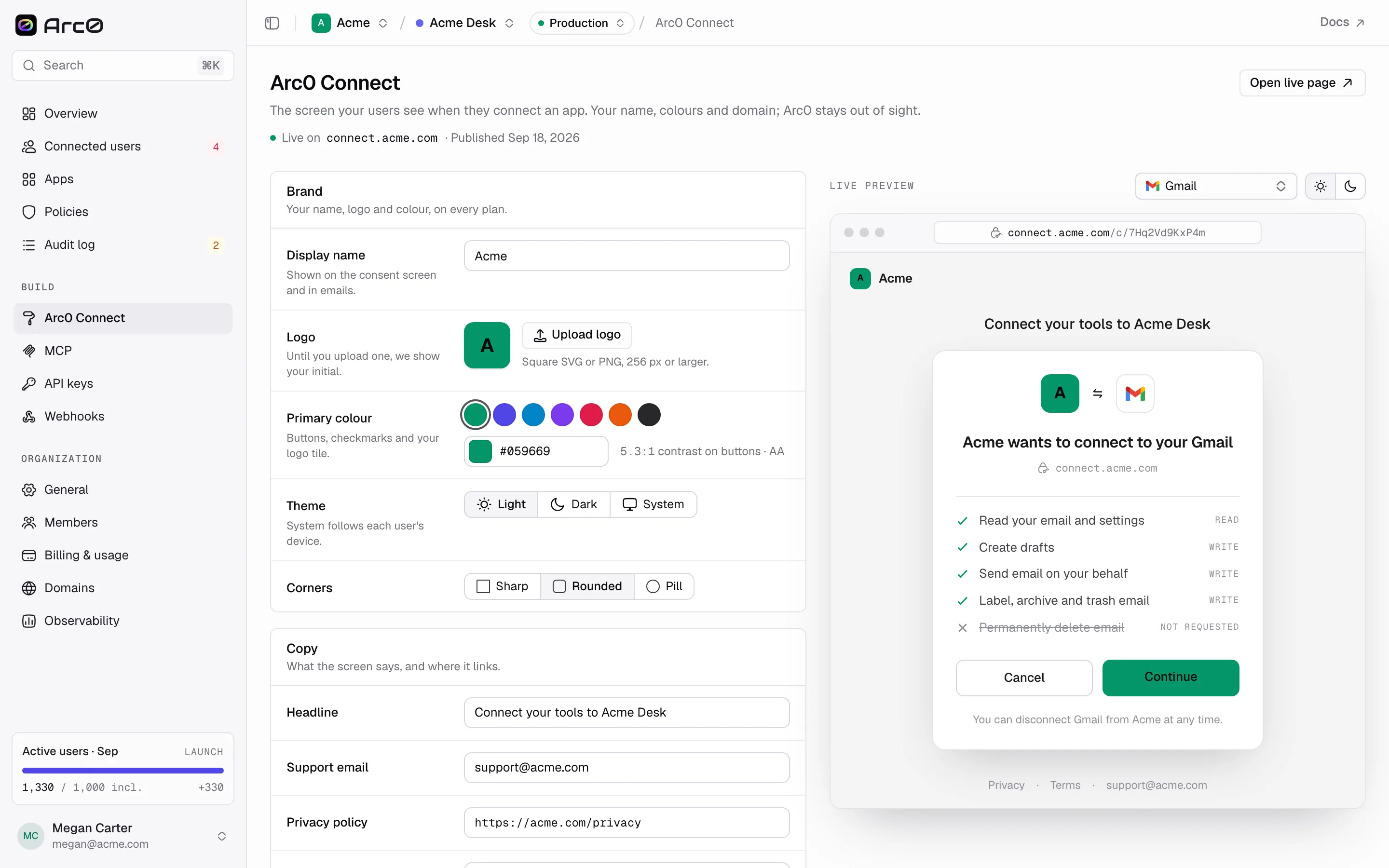
The fields
| Field | Editor label | Changes |
|---|---|---|
displayName | Display name | The org name shown throughout the flow |
logoUrl / logoText | Logo | The uploaded mark, via Upload logo |
primaryColor | Primary colour | Buttons, links, and accents |
theme | Theme | light, dark, or system |
radius | Corners | sharp, rounded, or pill |
headline | Headline | The line above the app name |
supportEmail | Support email | Shown in the footer |
privacyUrl | Privacy policy | Linked in the footer |
termsUrl | Terms | Linked in the footer |
customDomain | Custom domain | The host the flow runs on |
successRedirectUrl | After connecting | Where the user lands once done |
showPoweredBy | Powered by Arc0 | Toggles the footer credit |
Six color presets cover most brands without picking a custom value: Emerald (#059669), Indigo, Sky, Violet (#7c3aed), Rose, Orange, and Graphite. Corners follow the same three-step scale everywhere in the flow — card, tile, and control radius all move together, from sharp (4/4/3px) to rounded (14/10/8px) to pill (22/999/999px).
Launch and Scale
A custom domain needs a paid plan. Set the hostname in Custom domains first, then it appears as an option here.
The live preview
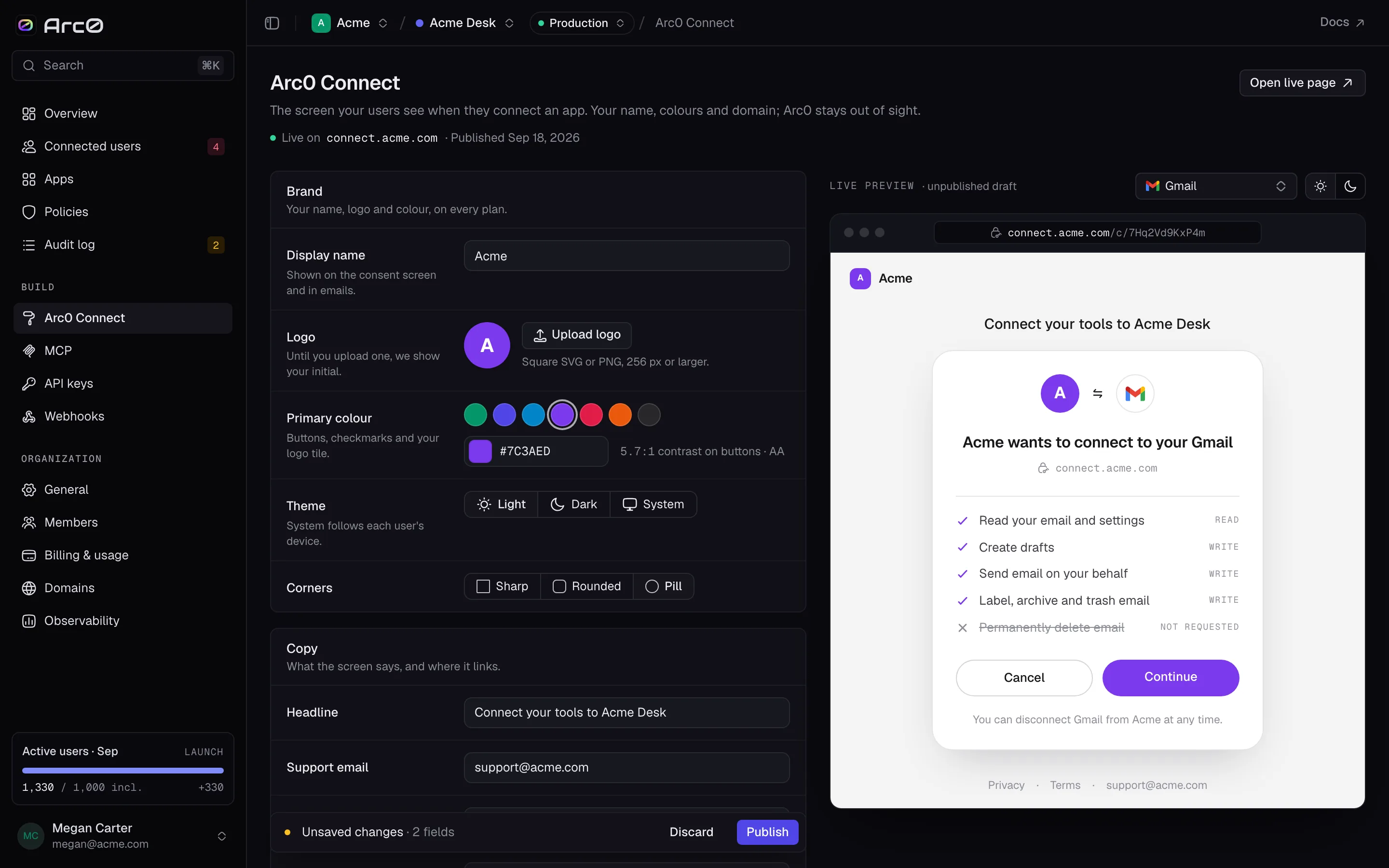
The preview on the right renders the actual consent screen for a real app in your project, so what you see is what a user sees. Two query params drive it directly if you want to link someone to a specific state: ?preview={appId} picks the app, and ?ptheme=light or ?ptheme=dark sets the preview's theme independent of your saved setting. The address bar under the preview shows the real path a user will land on, something like {host}/c/7Hq2Vd9KxP4m.
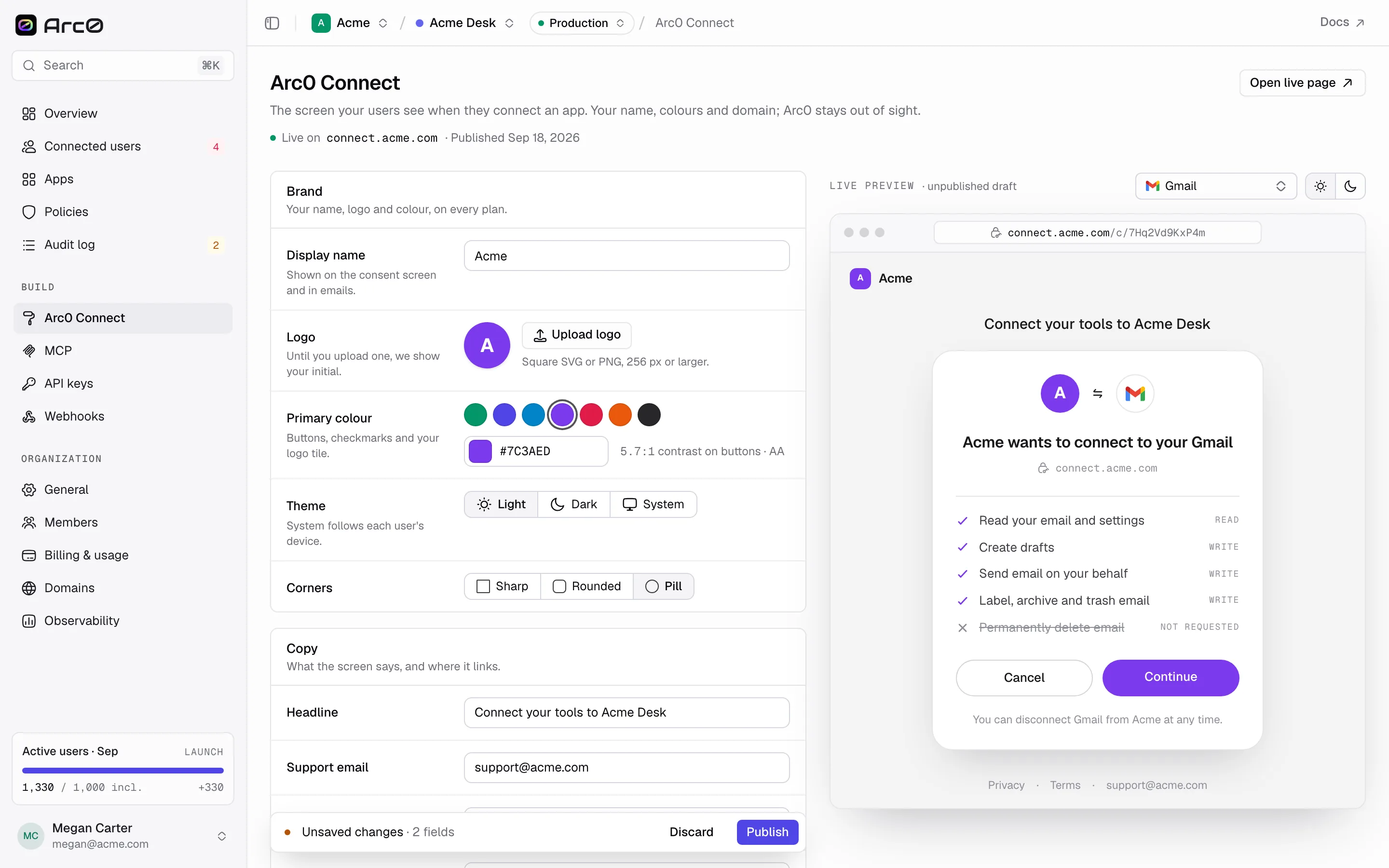
Publishing
Edits are a draft until you publish them. The header reads Live on {host} · Published {date} with a link to Open live page, so you can always see what's actually running. Once you change a field, a save bar appears — Unsaved changes · N fields — with Discard and Publish. Publish replaces the live page immediately; there's no staging step.