OAuth apps
Arc0-managed vs. your own OAuth app, the fields on each, and per-provider setup for five providers.
Every OAuth app on Arc0 runs one of two ways: Arc0's own registered client, or one you register yourself with the provider.
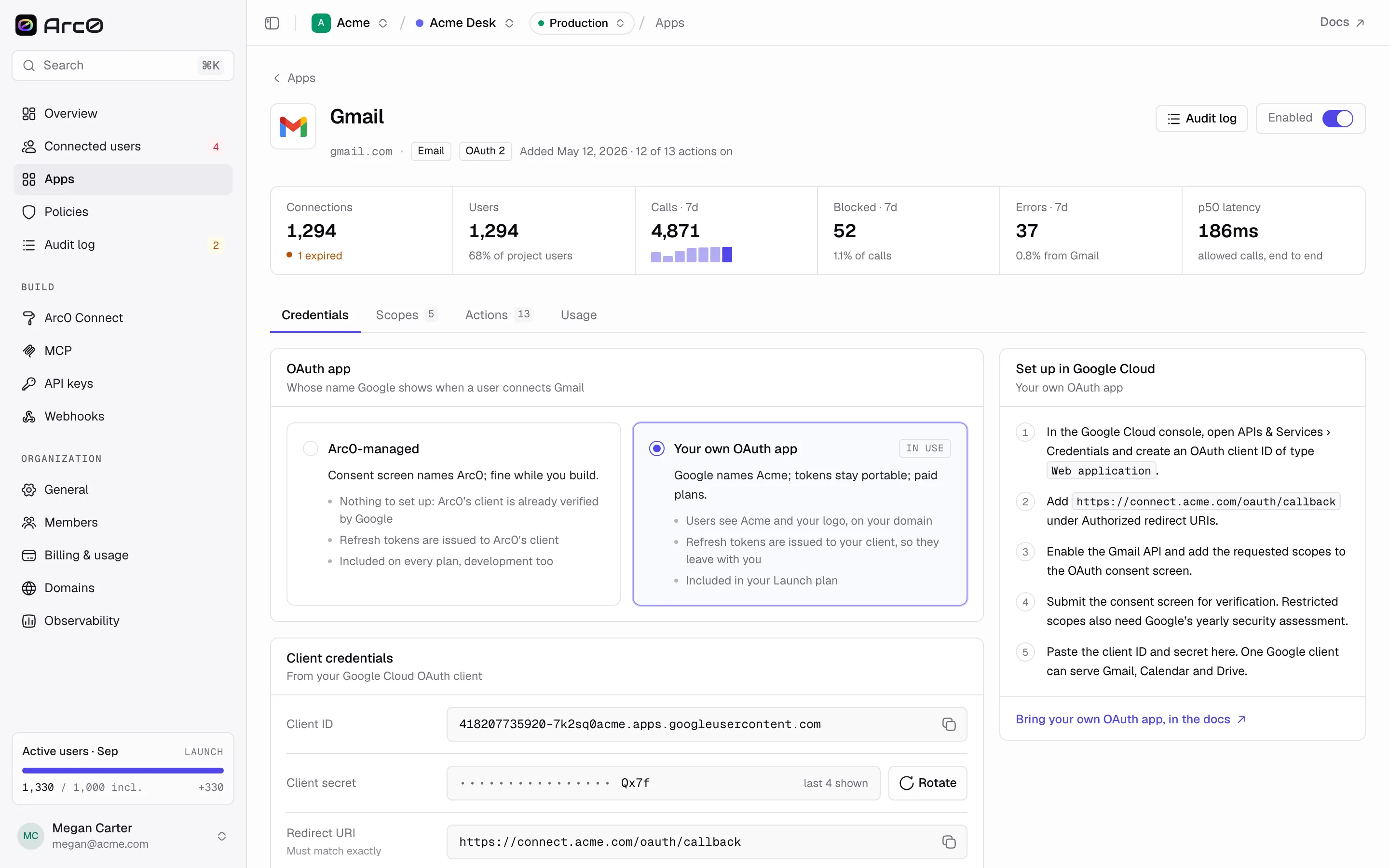
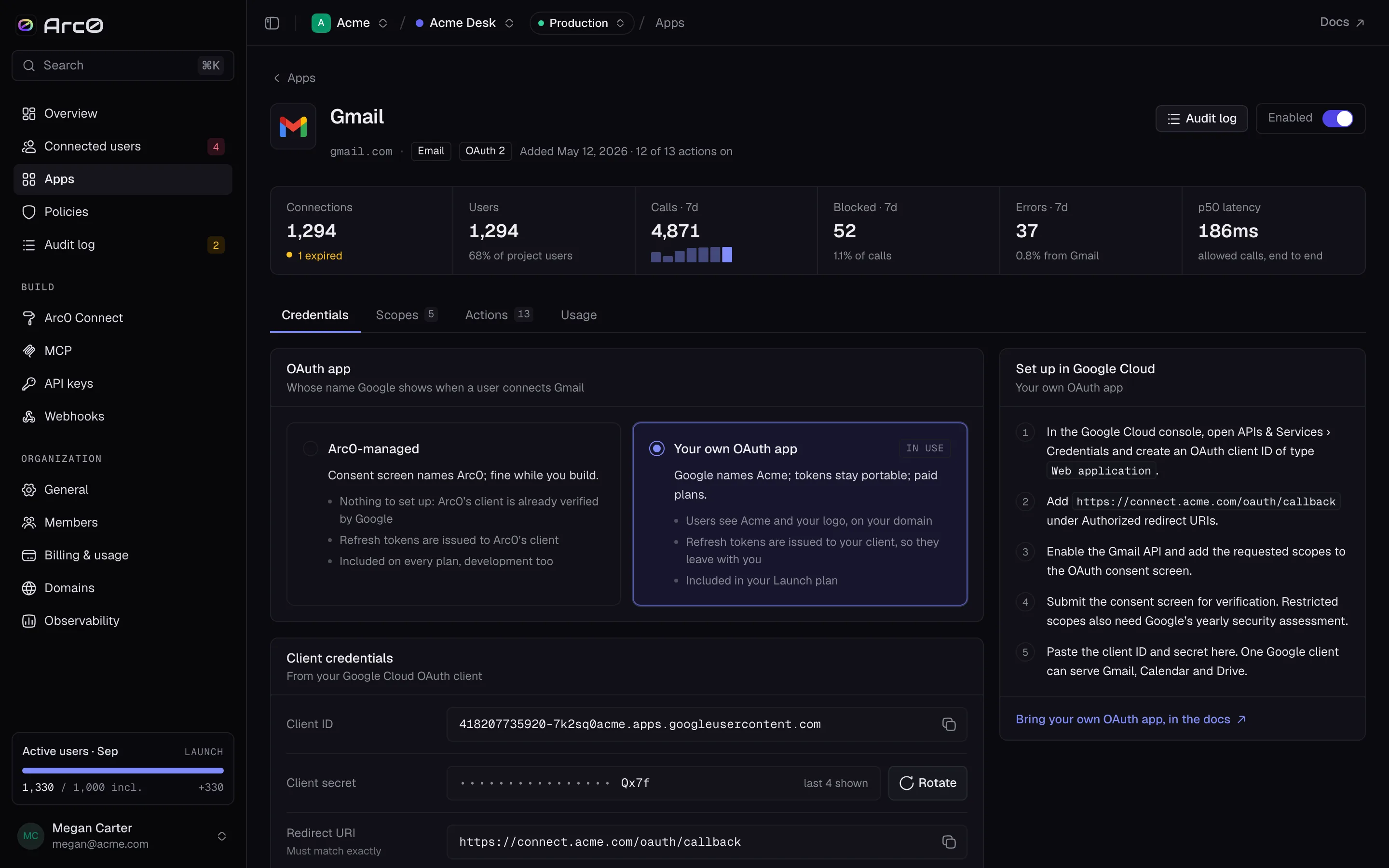
Arc0-managed vs. your own
Arc0-managed is the default and needs nothing from you — Arc0 already has a verified OAuth client with each provider, and your users see Arc0's name on the provider's consent screen alongside yours.
Launch and Scale
Your own OAuth app replaces that with a client you register. Two things change once you do:
- The consent screen names you. The provider's own dialog — the one Arc0 sends the user to — shows your app's name and icon, not Arc0's. For a user connecting Gmail, that's the difference between "Acme wants to access your Google Account" and a stranger's name doing the asking.
- Tokens are portable. Because the OAuth client is registered under your own credentials, the grants your users make belong to your app, not to Arc0's. If you ever move a connection or export its tokens, they work the same way they would if you'd built the OAuth flow yourself.
The fields
On the Credentials tab, switching to Your own OAuth app reveals:
| Field | Label | Notes |
|---|---|---|
clientId | Client ID | From the provider's console |
clientSecretHint | Client secret | Only the last 4 characters are shown; Rotate replaces it |
redirectUri | Redirect URI | Must match exactly what you register with the provider |
The redirect URI is https://connect.arc0.ai/oauth/callback by default, or https://connect.acme.com/oauth/callback once you're on a custom domain — copy whichever one is shown, since it has to match character for character on the provider's side.
Apps that authenticate with an API key instead of OAuth skip all of this and show a single API key panel instead.
Setting up each provider
Each provider's console asks for slightly different things. A panel on the Credentials tab, titled Set up in Google Cloud (or Azure, Slack, Salesforce Setup, Zendesk, depending on the app), walks through it — the outline is the same everywhere: create a client, paste in the redirect URI shown above, and copy the resulting ID and secret back into Arc0.
Create an OAuth client in Google Cloud Console under APIs & Services → Credentials, application type "Web application." Add the redirect URI shown on this tab, enable the Gmail (or other) API you need, and copy the client ID and secret back here.